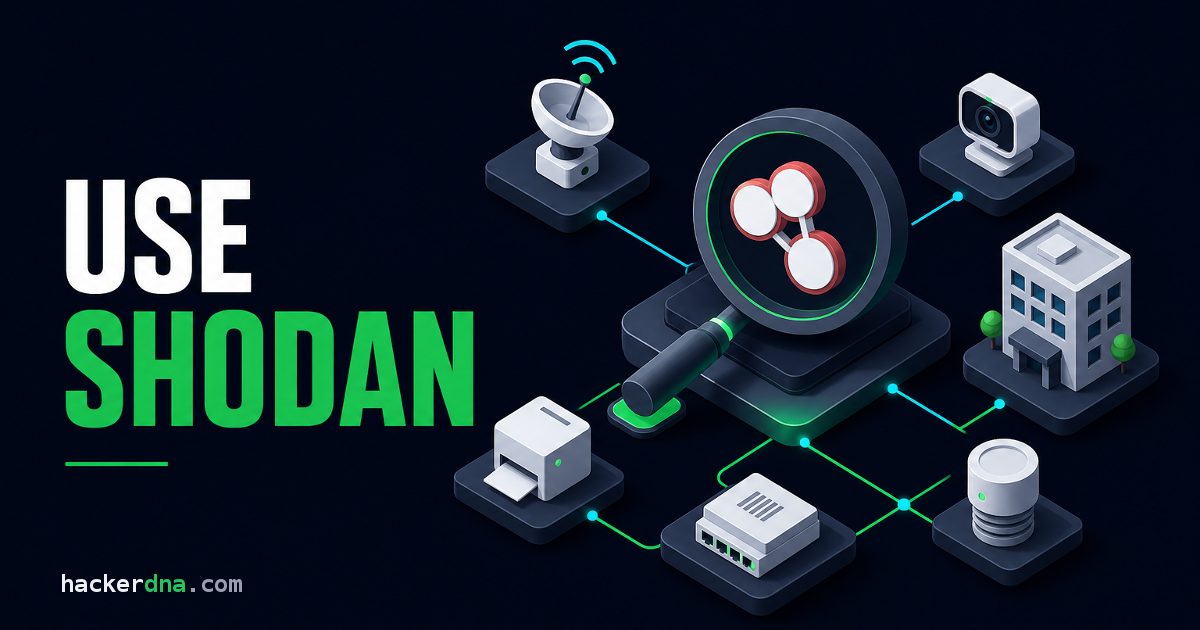
Shodan is a search engine for internet-connected devices, and the first time you use it properly it rearranges how you picture the internet. One query returns the make, model, and firmware version of ten thousand routers. Another returns every exposed database in a single country, or a screenshot of somebody's factory control panel. You never sent a packet to any of them. That is why learning how to use Shodan pays back an afternoon better than almost anything else a beginner can study, and why it turns up in the first hour of most penetration testing engagements.
This guide covers the account setup, the filters that actually matter, how to read a result without fooling yourself, the command line workflow, and exactly where the legal line sits. Every query here is one you can run today. If you want the full reconnaissance workflow rather than one tool, the OSINT for Hackers course runs domain recon, code search, and automation as guided browser exercises.
TL;DR: Shodan indexes service banners from internet-connected devices instead of web pages, so searching it is passive reconnaissance: you query Shodan's index, not the target. Learn about ten filters (port:, org:, net:, hostname:, http.title:, vuln:) and you can map an organization's exposed attack surface in minutes. The skill is stacking filters and reading banners critically, not memorizing query strings.
What Is Shodan?
Shodan is a search engine for internet-connected devices. Where Google crawls web pages and indexes their text, Shodan connects to IP addresses across the whole address space, records what each service says about itself, and makes that searchable. Shodan's own documentation puts the difference in one line: "Shodan crawls the Internet whereas Google crawls the World Wide Web."
The unit of data is the banner. When you connect to a service, it usually introduces itself before you ask anything: an FTP server names its software and version, an HTTP server sends response headers, an RDP endpoint leaks its NTLM domain name. Shodan collects those introductions at scale. Shodan's help center puts it plainly: "the bulk of the data is taken from banners, which are metadata about a software that's running on a device."
Two numbers set your expectations. Shodan crawls the entire internet at least once a week, and the website shows you results from data collected in the past 30 days. So a Shodan result is a recent photograph, not a live feed. The host might have been patched yesterday. It might not exist any more.
This is a documented adversary technique, not a curiosity. MITRE ATT&CK tracks it as T1596.005, Search Open Technical Databases: Scan Databases: "Adversaries may search within public scan databases for information about victims that can be used during targeting." MITRE names Shodan explicitly and documents groups including APT41 and Volt Typhoon using it. Defenders who have never opened Shodan are working with less information about their own perimeter than the people attacking it.
Getting Started: Account, API Key, and Credits
You can run a bare keyword search without logging in. The moment you add a filter, Shodan wants an account, and filters are the entire point of the tool. So step one is a free account at shodan.io, and step two is copying your API key from account.shodan.io.
Credits confuse every beginner, so here is the whole model in three lines. Shodan's credit documentation states that "1 query credit lets you download 100 results" and "1 scan credit lets you scan 1 IP." Both reset at the start of each month.
What actually spends a query credit is narrower than people assume. The API documentation for the search endpoint is precise: your account is deducted one credit if the query contains a filter, or if you access results past the first page. Browsing the first page of an unfiltered keyword search costs nothing.
Free, Paid, and the Academic Shortcut
A free account gets you filtered search and API access. Shodan Maps and Shodan Images both require a paid membership. Prices and plan names change often enough that any number in a blog post goes stale, so check shodan.io/pricing yourself rather than trusting a cheat sheet.
If you have a university email address, register with it. Shodan's academic upgrade is free and generous: the ability to monitor up to 16 IPs, 100 query credits per month, 100 scan credits per month, access to Maps and Images, and the vuln filter on the website. Students routinely pay for a membership without knowing this exists.
My advice for your first week: buy nothing. A free account plus the command line will keep you busy for longer than you expect, and you will make much better purchasing decisions once you know which features you actually reach for.
The Shodan Search Filters That Matter
Shodan's filter reference lists far more filters than anybody uses. These are the ones that carry almost every real query. The syntax is filtername:value with no space after the colon, and values containing spaces need quotes: org:"Example Corporation".
| Filter | Example | What it does |
|---|---|---|
port: | port:3389 | Only services on that port |
net: | net:198.51.100.0/24 | Everything inside a CIDR range |
hostname: | hostname:acme.example | Hostname string associated with the host |
org: | org:"Acme Corporation" | Organization that owns the IP space |
asn: | asn:AS15169 | Autonomous system number |
country: | country:PT | Two-letter country code |
city: | city:"San Diego" | City-level geolocation |
product: | product:MongoDB | Software Shodan fingerprinted |
os: | os:"Windows Server 2012" | Guessed operating system |
http.title: | http.title:"index of /" | Text in the HTML title tag |
http.component: | http.component:vue.js | Web technology detected on the page |
has_ssl: | has_ssl:true | Service wrapped in TLS |
ssl: | ssl:acme.example | String anywhere in the certificate |
vuln: | vuln:CVE-2014-0160 | Hosts Shodan associates with a CVE |
tag: | tag:ics | Shodan's own category label |
has_screenshot: | has_screenshot:true | Shodan captured a screen image |
Two behaviors are worth internalizing early. Without a filter, Shodan searches only the banner's data property, which is why a bare keyword search feels random. And a minus sign in front of a filter negates it, which is how you subtract the noise you already understand from the results you do not.
If vuln: returns nothing for you, that is not a syntax error. It is gated on the website behind membership or the academic upgrade.
How to Read a Shodan Result
A result page gives you an IP, a port, the owning organization, reverse DNS hostnames, a geolocation, a raw banner dump, and sometimes a certificate and a list of CVEs. Beginners read the CVE list and stop. That is the single most expensive habit in this whole discipline.
A version string in a banner is a claim, not a confirmation. Shodan's vulnerability assessment documentation is refreshingly honest about it: "If a server is running an old version of Apache then we will associate known issues with that version and set the associated verified property in the banner to False." It goes further, warning that "unverified vulnerabilities can have significant false positives depending on the device/software so they typically require additional verification" and "should be seen as a starting point for further investigation."
In practice this bites constantly. Debian and Red Hat backport security fixes without bumping the advertised version number, so a patched server can sit in Shodan's index wearing a vulnerable banner for years. When testing real applications, I treat a Shodan CVE list as a to-do list of things to verify by hand, never as findings. Writing a report off an unverified vuln: hit is how junior testers lose a client's trust.
The org: field deserves the same suspicion. It tells you who owns the IP space, which in a cloud-hosted world is frequently a hosting provider rather than the company running the service. Confirm ownership through certificates, hostnames, and the client's own asset list before you put an IP in scope.
Seven Shodan Queries Worth Running
Run these against a netblock you own or one you are authorized to test. Substitute your own range and domain for the reserved examples.
net:198.51.100.0/24- every service Shodan has seen on a range you control. Start here. Almost everybody finds something they forgot about.hostname:acme.example- hosts whose reverse DNS or certificate names reference your domain, including the staging box nobody decommissioned.org:"Acme Corporation" port:3389- Remote Desktop exposed on your address space. If this returns anything, that is your afternoon planned.ssl:acme.example -hostname:acme.example- hosts presenting your certificate but not your hostname, which is how you find origin servers sitting behind a CDN and unprotected.net:198.51.100.0/24 has_screenshot:true- anything on your range exposing a graphical interface. A VNC or RDP login screen visible to the internet is a finding on its own.http.title:"Hacked by"- website defacements, because attackers sign their work. Shodan's own research team used this exact query to rank the most prolific defacers, and reported roughly 2,000 recently compromised sites in the process.tag:ics net:198.51.100.0/24- industrial control protocols on your range. Building management, HVAC, and access control systems get connected by facilities teams who never tell IT.
The pattern matters more than the seven queries. Start wide with one filter, read ten results properly, then add a second filter to cut what you now understand. Four stacked filters and a keyword nobody else thought to try will beat any downloadable query list. That is the same instinct behind Google dorking, applied to devices instead of documents.
If port numbers are still abstract to you, read our explainer on what a port is first. Shodan results are almost unreadable until port 445 and port 3389 mean something specific to you.
How to Use Shodan From the Command Line
The website is fine for exploring. The CLI is where Shodan becomes a tool you build workflows around. Install it with pip, then authenticate once:
pip install -U --user shodan
shodan init YOUR_API_KEY
From there, five commands cover most of what you will do:
shodan count 'port:3389 country:US'- prints only the total number of matches. Use it to size a query before deciding how much of it to pull down.shodan host 198.51.100.10- everything Shodan knows about one IP: location, open ports, owning organization.shodan search --fields ip_str,port --separator , nginx- a quick look at a handful of results, printed as CSV.shodan download --limit 200 myresults.json.gz nginx- pages through results and saves the full banners to a compressed file.shodan parse --fields ip_str,port --separator , myresults.json.gz- pulls the fields you want out of a saved file and pipes cleanly into other tools.
The --fields and --separator flags are what make the output useful. Ask for two fields with a comma separator and you get CSV you can pipe straight into sort, uniq -c, or a spreadsheet:
198.51.100.10,443
198.51.100.42,8080
203.0.113.7,443
Use download and parse instead of search. This is Shodan's own recommendation and the reasoning is purely economic: paging through results spends query credits, so a search you saved to disk is a search you never have to pay for twice. Every re-analysis after that is free.
Two commands go further than most tutorials bother with. shodan stats aggregates rather than lists, which is how you answer questions about a population instead of a host. This one ranks the organizations with the most exposed Remote Desktop in the US:
shodan stats --facets org 'country:US port:3389'And alerts turn Shodan into monitoring. Register a range, then stream anything Shodan sees on it:
shodan alert create "My Range" 198.51.100.0/24
shodan stream --alert=all --datadir=~/shodan-data/
That pair is the most underrated feature in the product. Point it at your own perimeter and you get told when a new service appears, usually before your asset inventory notices.
Shodan vs Nmap vs Censys
Shodan and Nmap answer different questions. Shodan tells you what the internet looked like recently, for free, without touching the target. Nmap tells you what one host looks like right now, and the target sees you asking. You need both, in that order.
| Shodan | Nmap | Censys | |
|---|---|---|---|
| Touches the target | No | Yes | No |
| Data freshness | Up to 30 days old | Live | Periodic scans |
| Scope in one query | Whole internet | Hosts you specify | Whole internet |
| Free tier | Yes | Fully free | Limited |
| Best at | Finding what exists | Confirming what is true | Certificate and host pivoting |
The sensible workflow is Shodan first to build a target list without alerting anybody, then Nmap against the handful of hosts that are in scope and worth confirming. Our Nmap cheat sheet covers the second half of that.
On alternatives: Censys is the closest comparison and its certificate search is genuinely better than Shodan's for pivoting between related hosts. FOFA is the other name you will see, and MITRE lists all three together as scan databases that real threat groups use. If you are picking one to learn properly, learn Shodan. The community query library and the CLI are both stronger, and everything you learn about reading banners transfers.
Mistakes Beginners Make With Shodan
Four specific ones, in the order people usually hit them.
- Searching without filters. A bare keyword search hits only the banner text and returns noise. The filter is the query. The keyword is a garnish.
- Trusting the CVE list. Covered above and worth repeating, because this is the mistake with professional consequences. Unverified means unverified.
- Burning credits by clicking Next. Every page past the first costs a credit. Use
shodan countto size the query, thenshodan downloadonce. - Connecting to whatever turns up. The search was passive. Opening that exposed database in your browser is not, and it is where a learning exercise becomes a criminal offense.
The fifth mistake is subtler: collecting queries instead of building judgment. A thousand-line Shodan query list is worth less than the ability to look at one banner and know which field to pivot on next.
Legal and Ethical Considerations
Critical reminder: Searching Shodan is passive and lawful. Connecting to a device you found, logging into an exposed panel, or reading data behind it is active access, and doing that without authorization is a crime in most countries. In the United States it falls under the Computer Fraud and Abuse Act.
The line is cleaner with Shodan than with most recon tools, because the tool itself splits along it. Searching queries Shodan's index and the target learns nothing. On-demand scanning is different: shodan scan asks Shodan's infrastructure to connect to the IPs you name, one scan credit per IP. That is active reconnaissance performed on your behalf, and it belongs only on ranges you own or have written authorization to test.
Where You Are Clearly Fine
- Searching your own IP ranges, domains, and certificates
- Engagements covered by signed authorization that names the scope
- Bug bounty programs, within the published scope and rules
- CTF competitions and training labs built for practice
- Aggregate research that reports totals and trends rather than identifying individual victims
Where People Get Themselves in Trouble
- Opening an exposed database or camera stream "just to confirm it is real"
- Running
shodan scanagainst infrastructure that is not yours - Publishing a query that identifies a specific unpatched organization before they have fixed it
- Downloading exposed personal data, for any reason at all
The defensive case for all of this is now official policy. CISA's Binding Operational Directive 23-02, issued in June 2023, requires federal civilian agencies to remove internet-exposed management interfaces on routers, switches, firewalls, VPN concentrators, proxies, load balancers, and out-of-band server management interfaces from the public internet, or enforce Zero Trust access control on them, within 14 days of discovery. Finding those interfaces is exactly what Shodan does. If you find something exposed and it is not yours, the move is responsible disclosure: report it, do not touch the data, and give them time.
Frequently Asked Questions
Is Shodan free to use?
Yes. A free account gives you filtered search and API access, and one query credit downloads up to 100 results. Shodan Maps and Shodan Images require a paid membership. If you have a university email address, the academic upgrade is free and includes 100 query credits and 100 scan credits per month plus Maps, Images, and the vuln filter.
Is using Shodan legal?
Searching Shodan is legal. You are querying a third party's database of publicly broadcast service banners, and the target never sees your query. What is not legal is connecting to something you found without authorization, or running shodan scan against infrastructure you do not own. The search is passive, and everything after it is judged like any other access.
How is Shodan used in cybersecurity?
Three main ways. Defenders use it to inventory their own external attack surface and catch services nobody meant to expose. Penetration testers and bug bounty hunters use it during reconnaissance to build a target list without touching the client. Researchers use it to measure how widespread a vulnerability is across the internet. MITRE ATT&CK also documents real threat groups using it for target selection.
Can Shodan find my home IP address?
Shodan indexes your public IP only if something on it answers an incoming connection. A typical home router with no port forwarding shows little or nothing. Search your own address to check. The geolocation Shodan displays comes from IP databases and is city-level at best, frequently wrong, and never a street address.
What are the most useful Shodan commands?
After shodan init, the four that matter are shodan count to size a query, shodan host for a single IP, shodan download to save full results to a file, and shodan parse to extract fields from that file as CSV. Prefer download over search so you never pay query credits twice for the same search.
What are the best Shodan alternatives?
Censys is the strongest alternative, with better certificate search for pivoting between related hosts. FOFA is the other widely used scan database. For live confirmation of a specific host rather than a historical index, Nmap is the answer, and it is free and unlimited.
What is a good first Shodan query for a beginner?
net: followed by a netblock you own, or your own public IP. It teaches you the filter syntax, it is unambiguously legal, and if it returns anything unexpected you have found a real exposure on your own infrastructure worth fixing today.
Your Next Steps
Learning how to use Shodan comes down to two habits. Stack filters from wide to narrow instead of hunting for the perfect one-liner, and treat every banner as a claim you still have to verify. Ten filters and those two habits will carry you further than any query list you can download.
Start with your own address space. Run net: against a range you control, read the banners properly, and see what your perimeter is telling the internet. Then take the skill somewhere it has a scoreboard. The OSINT for Hackers course places device search inside the full reconnaissance workflow alongside domain recon and code search, and the Corporate Directory Hunt lab gives you a real target to enumerate from first contact to the flag. Both run in the browser with no setup. Start with HackerDNA's free tier, no credit card required.
Part of the Penetration Testing series
Related articles: