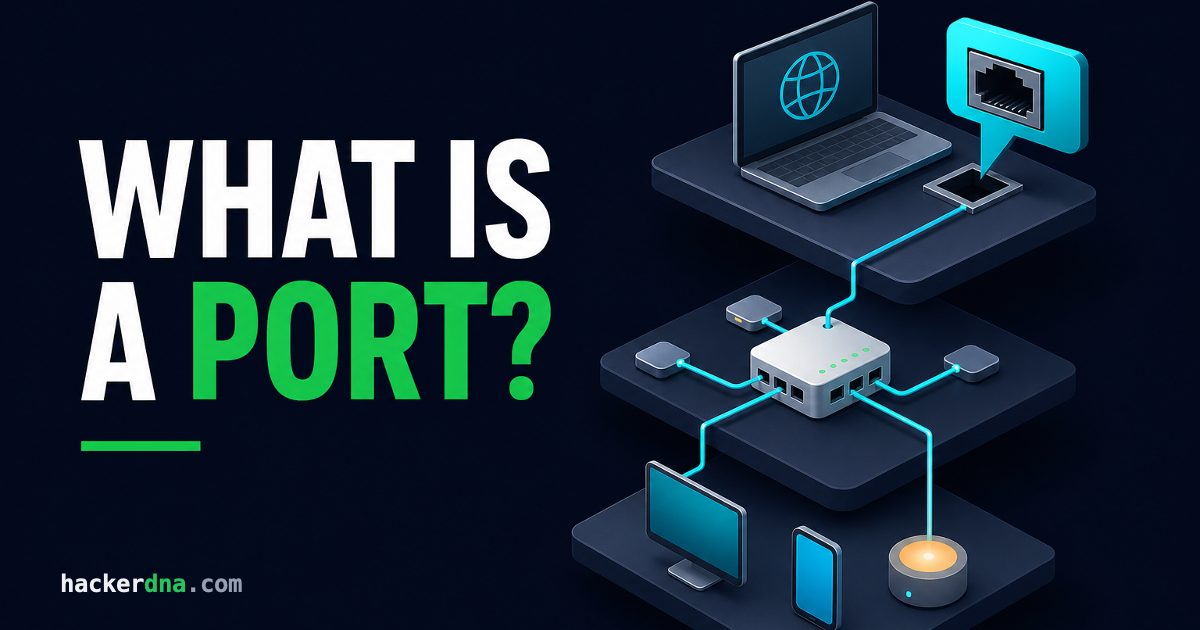
Right now, your computer is juggling dozens of network connections. Your browser is loading this page, your email client is checking for new messages, a chat app is waiting for incoming notifications, and software updates are downloading in the background. How does your machine keep all of this traffic organized without mixing everything up? The answer is ports.
A port is a numbered endpoint that directs network traffic to the right application. Every time data arrives at your computer, the port number tells the operating system exactly where to deliver it. Understanding ports is one of those foundational concepts that makes everything else in networking and cybersecurity click into place. This guide covers what ports are, how they work, the numbers worth memorizing, and why they matter for security, with hands-on scanning practice in the free Learn 102 lab.
TL;DR: A port is a 16-bit number (0 to 65535) that the operating system uses to route incoming network traffic to the correct application. Web servers listen on port 443 (HTTPS) and 80 (HTTP), SSH on port 22, and your browser borrows a temporary high-numbered port for each outgoing connection. The key takeaway for security: every open port is a service an attacker can reach, so the fewer you expose, the smaller your attack surface.
What Is a Port?
A port is a 16-bit number, ranging from 0 to 65535, that identifies a specific application or service on a networked device. The operating system uses the destination port on every incoming packet to decide which program receives the data, so a single IP address can run many services at once without traffic getting crossed.
Picture a large office building with a single street address. Mail arrives at that address all day long, but it needs to reach different companies on different floors. The suite number on each envelope tells the mailroom exactly where to route each delivery. Network ports work the same way.
Your computer's IP address is like the building's street address. It gets traffic to the right machine. The port number is like the suite number. It gets traffic to the right application running on that machine.
When you visit a website, your browser connects to port 443 on the web server. When you send an email, your mail client connects to port 587 or 465. Each application listens on its assigned port, ready to handle incoming data. With 65536 possible ports, a single host can theoretically run tens of thousands of distinct services side by side.
The combination of an IP address and a port number is called a socket. You might see this written as 192.168.1.100:443, where the number after the colon is the port. A socket is the actual object your operating system creates and tracks: it pairs the address with the port and binds it to a process, which is why two programs cannot both listen on the same TCP port at the same time. This notation uniquely identifies a specific service on a specific machine, allowing billions of simultaneous connections across the internet without any confusion about where data should go.
How Ports Actually Work
Ports exist at the Transport Layer of the networking stack, where they work alongside TCP and UDP protocols to manage connections. Here is what happens when you load a webpage:
- You enter a URL and press Enter
- Your browser needs to connect to port 443 (the standard HTTPS port) on the destination server
- Your operating system picks a random high-numbered port on your machine, say 52847, to use as the source port for this specific connection
- A connection forms between your port 52847 and the server's port 443
- Data flows back and forth until you close the tab or navigate away
That source port your system chose (52847 in this example) is called an ephemeral port. "Ephemeral" means short-lived. Your system picks it temporarily for one connection and releases it afterward.
Every active connection has four pieces of information: source IP, source port, destination IP, and destination port. This combination (sometimes called a 4-tuple) must be unique. That is how your computer can have 50 browser tabs open to the same website without mixing up the responses.
TCP vs UDP
You will often hear ports described as "TCP ports" or "UDP ports." These refer to the transport protocol being used.
TCP (Transmission Control Protocol) is reliable and ordered. Before any data transfers, TCP performs a three-way handshake: your computer sends a SYN packet, the server responds with SYN-ACK, and your computer replies with ACK. This setup ensures both sides are ready. If packets get lost, TCP automatically resends them. Web browsing, email, and file transfers typically use TCP because accuracy matters more than speed.
UDP (User Datagram Protocol) skips the handshake and just sends data. Packets might arrive out of order or not at all, but that trade-off makes UDP faster. Video calls, online gaming, and DNS lookups often use UDP because a slightly dropped packet matters less than lag.
TCP and UDP maintain separate port spaces. A server can listen on TCP port 53 and UDP port 53 simultaneously, and these are treated as distinct services. DNS actually uses both: UDP for quick lookups and TCP for larger zone transfers.
The Three Port Ranges
The Internet Assigned Numbers Authority (IANA) organizes the 65,536 available ports into three categories. Knowing these ranges helps you recognize what you are looking at during network analysis.
Well-Known Ports: 0 to 1023
These ports are reserved for common, established services. Think of them as premium real estate that requires special permission to use. On Linux and macOS, binding to a port below 1024 requires root privileges. On Windows, administrative access is similarly needed.
This restriction exists for security. Without it, any program could pretend to be your web server or email service. By limiting access, the operating system prevents unauthorized applications from impersonating critical services.
Examples: Port 22 (SSH), Port 25 (SMTP email), Port 53 (DNS), Port 80 (HTTP), Port 443 (HTTPS).
Registered Ports: 1024 to 49151
Software vendors can register these ports with IANA for their applications. The registration helps avoid conflicts when multiple programs want the same port.
Examples: Port 3306 (MySQL), Port 5432 (PostgreSQL), Port 3389 (Remote Desktop), Port 8080 (common alternative for web servers).
Dynamic/Ephemeral Ports: 49152 to 65535
These ports are for temporary use. When your browser makes an outgoing connection, the operating system grabs an available port from this range. Once the connection closes, the port goes back into the pool.
Different systems handle ephemeral ports slightly differently. Linux defaults to the range 32768-60999 rather than the IANA-specified 49152-65535. You can check your system's range on Linux with: cat /proc/sys/net/ipv4/ip_local_port_range
Common Ports Worth Memorizing
Once you start analyzing network traffic or testing systems, you will recognize port numbers instinctively. Until then, this table covers the ones you will encounter most often. A port number is just a convention, not a hard rule: nothing stops you from running a web server on port 2222, but sticking to the standard ports is what lets clients connect without being told the number every time.
| Port | Protocol | Service | Notes |
|---|---|---|---|
| 20, 21 | TCP | FTP | File transfer; 21 for commands, 20 for data |
| 22 | TCP | SSH | Secure remote access; replaced Telnet |
| 23 | TCP | Telnet | Unencrypted remote access; avoid using |
| 25 | TCP | SMTP | Sending email between mail servers |
| 53 | TCP/UDP | DNS | Translates domain names to IP addresses |
| 80 | TCP | HTTP | Unencrypted web traffic |
| 110 | TCP | POP3 | Retrieving email; downloads to client |
| 143 | TCP | IMAP | Retrieving email; syncs with server |
| 443 | TCP | HTTPS | Encrypted web traffic; most sites use this |
| 445 | TCP | SMB | Windows file sharing; historically exploited |
| 3306 | TCP | MySQL | Popular database server |
| 3389 | TCP | RDP | Windows Remote Desktop |
| 5432 | TCP | PostgreSQL | Popular database server |
| 8080 | TCP | HTTP Alt | Development servers, proxies |
A few of these deserve special attention. Port 23 (Telnet) sends everything in plain text, including passwords. It should never be exposed to the internet. Port 445 (SMB) was the attack vector for WannaCry ransomware in 2017, which exploited a vulnerability called EternalBlue to infect over 200,000 computers across 150 countries. Port 3389 (RDP) faces constant brute-force attacks because it provides direct access to Windows systems.
In practice, an open port does not always mean the service you would expect. Defenders relabel services onto non-standard ports (SSH on 2222 is common), and attackers stand up command-and-control on whatever ports outbound firewalls allow, often 443 because almost everything lets HTTPS out. Treat the port number as a strong hint, then confirm what is actually listening with a service-version scan (nmap -sV) before you trust the label.
For hands-on practice with port scanning, our Nmap cheat sheet walks through the most useful commands.
Why Ports Matter for Security
Every open port is a door into your system. The more doors you leave unlocked, the more opportunities attackers have to walk in.
Attack Surface
When security professionals talk about "attack surface," they mean all the potential entry points an attacker could target. Each listening port adds to that surface. A web server that only needs to serve HTTPS should only expose port 443. If the same machine has SSH on port 22, MySQL on port 3306, and FTP on port 21 all accessible from the internet, the attack surface has grown significantly.
Reconnaissance
Before attacking a system, adversaries typically scan for open ports to understand what services are running. Finding port 22 open tells them SSH is available. An open port 3306 reveals a MySQL database. Each piece of information guides their next steps. As a defender, knowing exactly which ports your systems expose prevents surprises.
Firewalls
Firewalls filter traffic based on port numbers (among other criteria). A well-configured firewall blocks everything by default and only allows traffic to specific required ports. This approach ensures that even if a vulnerable service accidentally starts, it will not be reachable from the network.
Traffic Analysis
When investigating suspicious activity, port numbers help identify what protocols are in use. Seeing traffic on port 443? Probably HTTPS. Unexpected traffic on port 4444? That is a common default for reverse shells. This pattern recognition becomes second nature with practice. Our Packet Pursuit lab provides hands-on experience with analyzing network captures.
For a deeper dive into these concepts, the network penetration testing course covers reconnaissance through exploitation.
Port Scanning Fundamentals
Port scanning is the process of probing a system to discover which ports are open. Security professionals use it to assess vulnerabilities. Attackers use the same techniques to find entry points. Understanding both perspectives makes you better at defense.
Scanning Techniques
TCP Connect Scan: The straightforward approach. The scanner attempts a complete TCP handshake with each port. If the handshake succeeds, the port is open. This method works reliably but generates obvious log entries because every successful probe creates a real connection.
SYN Scan: Sometimes called a "half-open" or "stealth" scan. The scanner sends a SYN packet and waits for a response. If the target replies with SYN-ACK, the port is open. Instead of completing the handshake, the scanner sends RST to tear down the connection immediately. This approach is faster and creates fewer logs, though calling it "stealth" is optimistic since modern intrusion detection systems catch it easily.
UDP Scan: More challenging because UDP has no handshake to observe. The scanner sends a UDP packet and watches for responses. An ICMP "port unreachable" message indicates the port is closed. Silence might mean open, or it might mean a firewall is dropping packets. UDP scans require patience and produce less certain results.
Understanding Port States
Scanning results typically report one of these states:
- Open: A service is actively listening and accepting connections
- Closed: The port is accessible but nothing is listening
- Filtered: A firewall is blocking probes, making it impossible to determine the port's status
Nmap has been the standard port scanning tool for over two decades. The active recon chapter of the Network Penetration Testing course covers scanning techniques from basic discovery to service enumeration.
Checking Open Ports on Your Own System
Before scanning others, learn to examine your own machine. These commands show which ports are listening locally.
Linux
The ss command replaced the older netstat on modern systems:
ss -tulnThis shows TCP (-t) and UDP (-u) listening (-l) ports with numeric addresses (-n). To see which process owns each port, add -p and run as root:
sudo ss -tulnpWindows
Open Command Prompt or PowerShell:
netstat -an | findstr LISTENINGTo see which program opened each port, run as Administrator:
netstat -anbmacOS
The lsof command shows open network connections:
sudo lsof -iTCP -sTCP:LISTEN -P -nOr use the traditional netstat:
netstat -an | grep LISTENScanning Remote Systems
To check ports on another machine (with proper authorization), Nmap is the standard tool:
nmap -sT -p 1-1000 192.168.1.1This performs a TCP connect scan on ports 1 through 1000. Scanning without permission is illegal in most jurisdictions and can result in serious consequences. Only scan systems you own or have explicit written authorization to test.
Port Security Best Practices
These guidelines will help you maintain a secure network posture whether you are managing a home lab or production infrastructure.
Close Unnecessary Ports
Audit your systems regularly and disable services you do not need. Every open port requires ongoing attention to patching and monitoring. Fewer ports means less maintenance and lower risk.
Default Deny Firewalls
Configure your firewall to block all incoming connections by default. Then explicitly allow only the ports required for your services. This approach catches misconfigurations automatically because nothing gets through unless you intentionally permit it.
Keep Services Patched
Vulnerabilities in network services provide entry points even when ports are intentionally open. Subscribe to security advisories for software you run and apply updates promptly. The EternalBlue exploit that enabled WannaCry had a patch available two months before the attack; many victims simply had not updated.
Prefer Encrypted Protocols
Choose HTTPS over HTTP, SSH over Telnet, SFTP over FTP. Encryption protects data in transit and often provides better authentication mechanisms. There is rarely a good reason to use unencrypted protocols for anything sensitive.
Monitor and Log
Track connections to your systems. Unusual port activity, like a sudden spike in traffic to an unexpected port, might indicate reconnaissance or compromise. Even basic logging helps during incident investigation.
Legal and Ethical Boundaries
Port scanning without authorization is illegal in most countries. Even if your intentions are purely educational, scanning systems you do not own can result in criminal charges, civil liability, or termination of your internet service.
Safe options for practicing these skills:
- Your own computers and home network equipment
- Virtual machines you control
- Purpose-built practice environments like HackerDNA labs
- Bug bounty programs where you have read and accepted the scope
- Professional penetration tests with signed authorization
The Hacking 101 course covers authorization procedures and legal frameworks in detail.
Conclusion
Ports are the addressing system that lets multiple network services share a single connection. Every web request, email message, and file transfer relies on ports to reach the right application. For security work, understanding ports means understanding both how systems communicate and where attackers look for opportunities.
The concepts here, port numbers, ranges, scanning techniques, and security practices, will come up constantly as you progress. Start by examining your own systems with the commands in this guide. Notice which ports are open and research any you do not recognize. From there, explore structured practice through hands-on challenges that put these concepts into action.
Ports are just the beginning, but they are a foundation that makes everything else make sense.